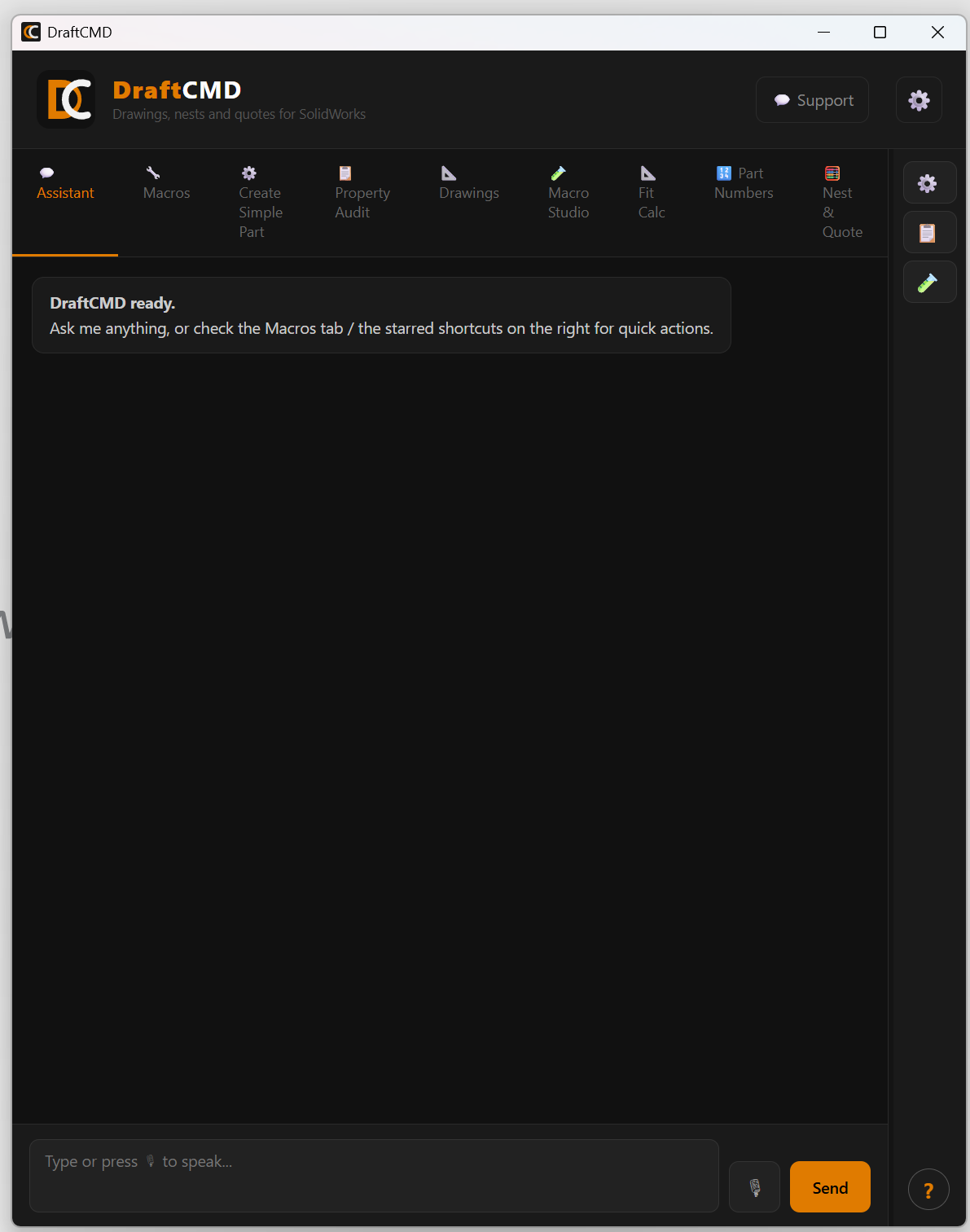
Inside the panel
Every tab, explained
DraftCMD docks beside your model in SolidWorks. These are the real screens, one feature at a time.
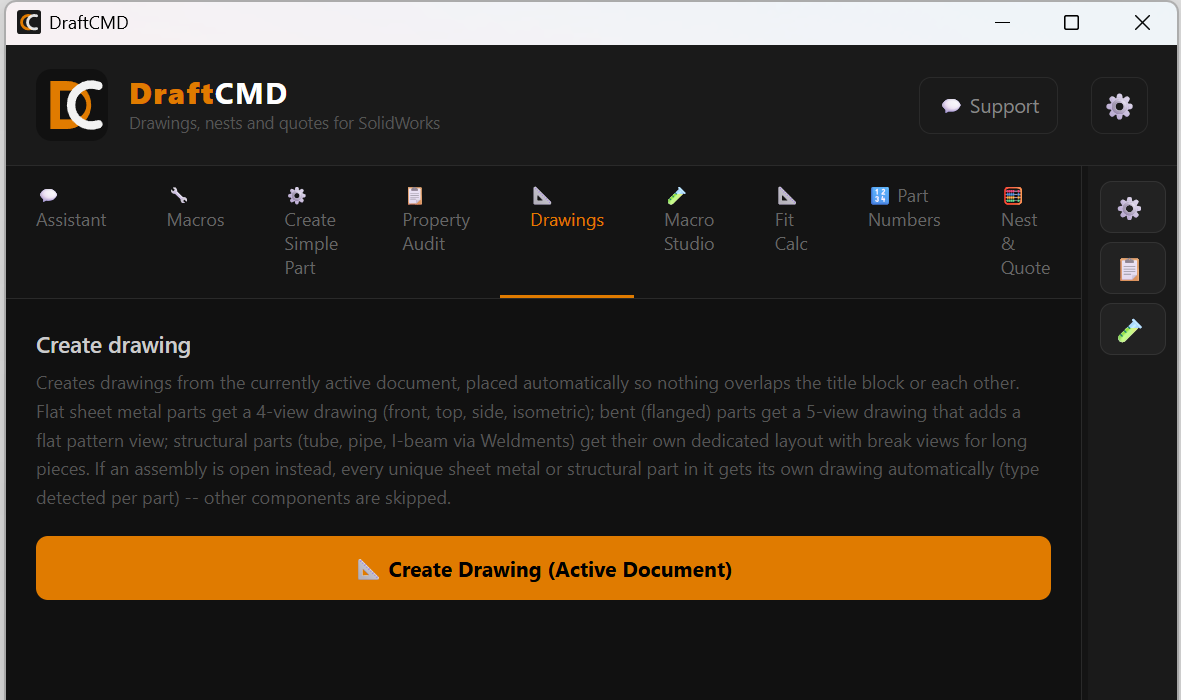
Drawings
One click from model to drawing
Press Create Drawing with a part or assembly open. DraftCMD reads what the part is and lays out the right views, placed so nothing overlaps the title block or each other.
- Flat sheet metal gets a 4-view drawing: front, top, side and isometric
- Bent, flanged parts get a 5-view drawing that adds the flat pattern
- Tube, pipe and I-beam weldments get their own layout, with break views for long pieces
- With an assembly open, every unique sheet metal or structural part gets its own drawing. Other components are skipped.
- Use your own drawing template and sheet layout, and optionally audit custom properties first
Nest & Quote
Set your stock and rates once
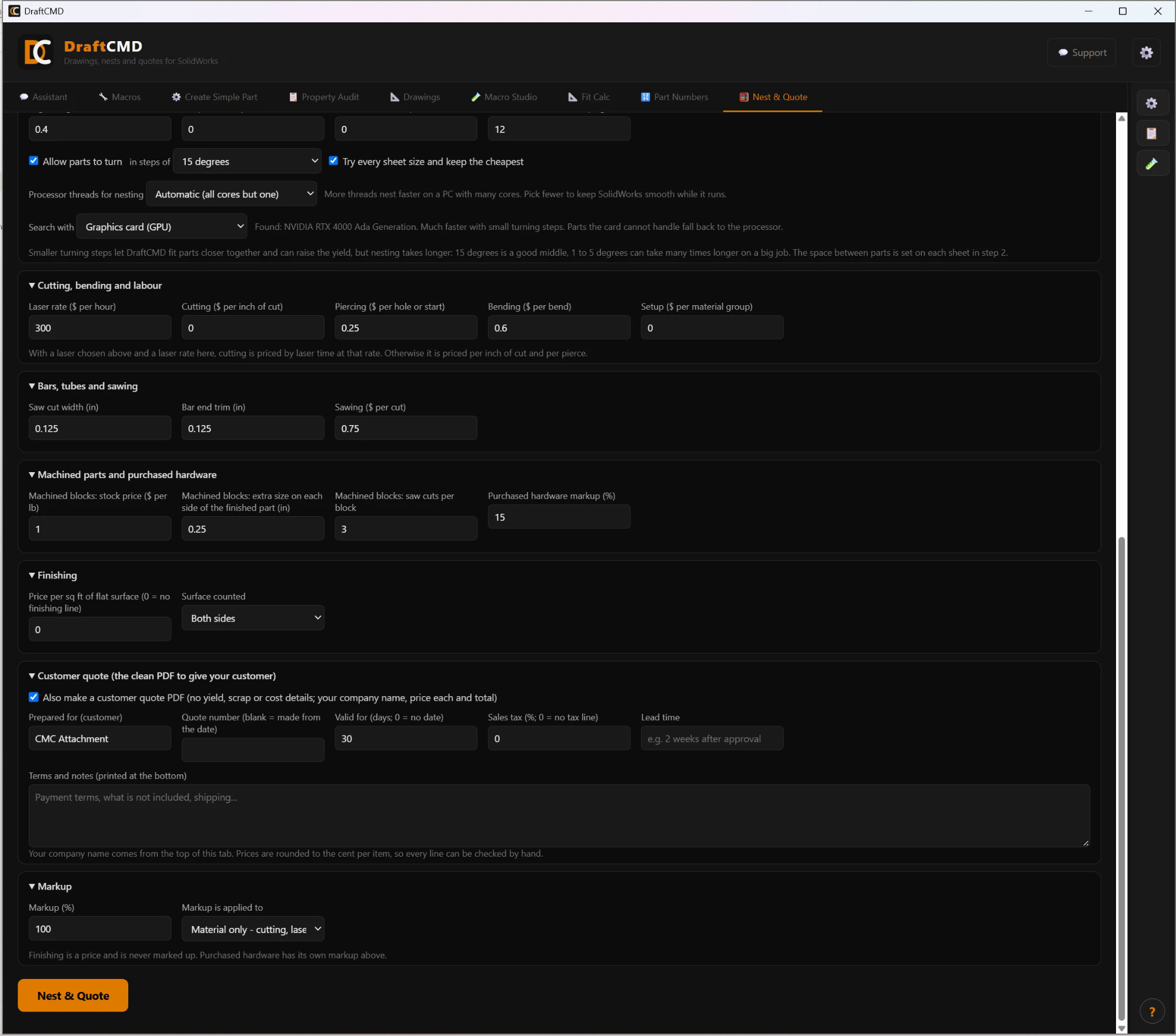
Four steps on one screen. DraftCMD reads your parts, nests them on the stock you actually buy, and writes a PDF with every nest and a priced quote.
- 1. Choose the parts. The open assembly or part, or a folder of parts. Set how many assemblies to build.
- 2. Stock and prices. Your sheet sizes and bar, tube and structural lengths, priced per pound. With "try every size" on, it keeps the cheapest sheet for each material.
- 3. Nesting rules. Edge margin, space between parts, saw cut width, bar end trim, and whether parts may turn 90 degrees.
- 4. Costs and markup. Scrap credit, cutting per inch, piercing, bending, sawing, setup, markup, offcut credit and a separate markup for purchased hardware.
- Also: STEP parts and assemblies, machined parts priced as raw block plus machining, and a saved nest you can open and edit later.
The report shows each sheet with its parts, the offcut that goes back to stock, yield, scrap, and McMaster-Carr hardware found in the assembly. The nest is a quoting estimate, not cutting software.
Part Numbers
Numbers that never collide
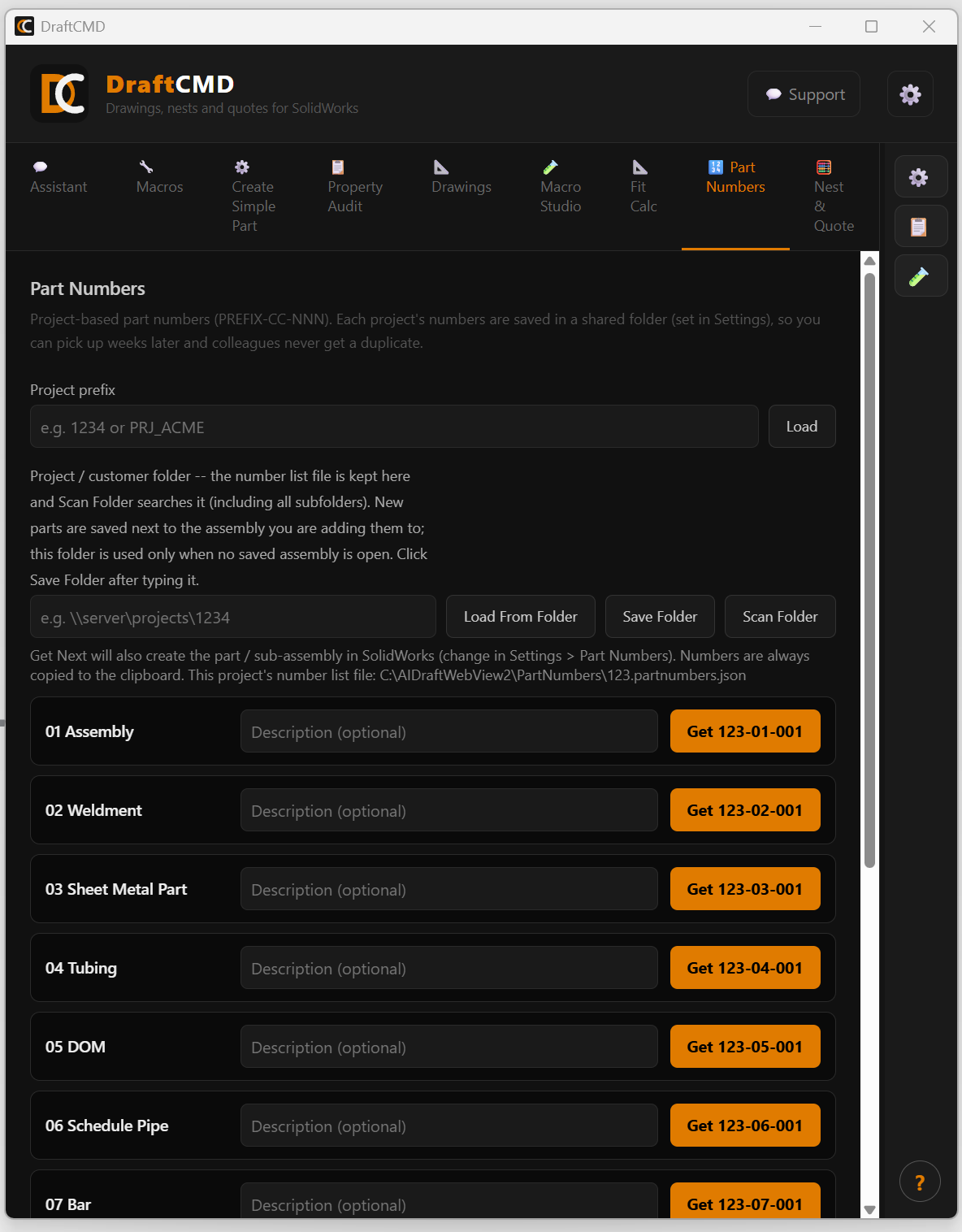
Project-based numbers in the form PREFIX-CC-NNN, kept in a shared folder so you can pick a project up weeks later and colleagues never get a duplicate.
- Twelve categories out of the box, from assemblies and weldments to sheet metal, tubing, bar and purchased parts
- Optional description for each number, and a one-click Get button per category
- The number is copied to the clipboard, and DraftCMD can also create the part or sub-assembly in SolidWorks
- Scan a project folder to find numbers already used, and void numbers you no longer need
An example
You type
save every configuration of this part as its own STEP file in the same folder
DraftCMD plans
Export every configuration of the open part or assembly to a separate STEP file, named after its configuration and saved in the same folder as the document.
Macro Studio
Describe the job. DraftCMD builds the macro.
Tell SolidWorks what you want done in plain English. Macro Studio turns it into a short plan, asks questions only when something cannot be safely assumed, then writes the macro and runs it.
- Loose wording is fine. You confirm the plan before anything runs, or tick the box to skip that step
- Save the macros you like and run them again from the Macros tab
- Share your best ones with the library, or install ones other people have shared
- Uses your own Anthropic key, so your usage and cost stay with you
A macro has the same access to SolidWorks and your files as the rest of DraftCMD, so read the plan before you run it.
Create Simple Part
Basic parts in a sentence
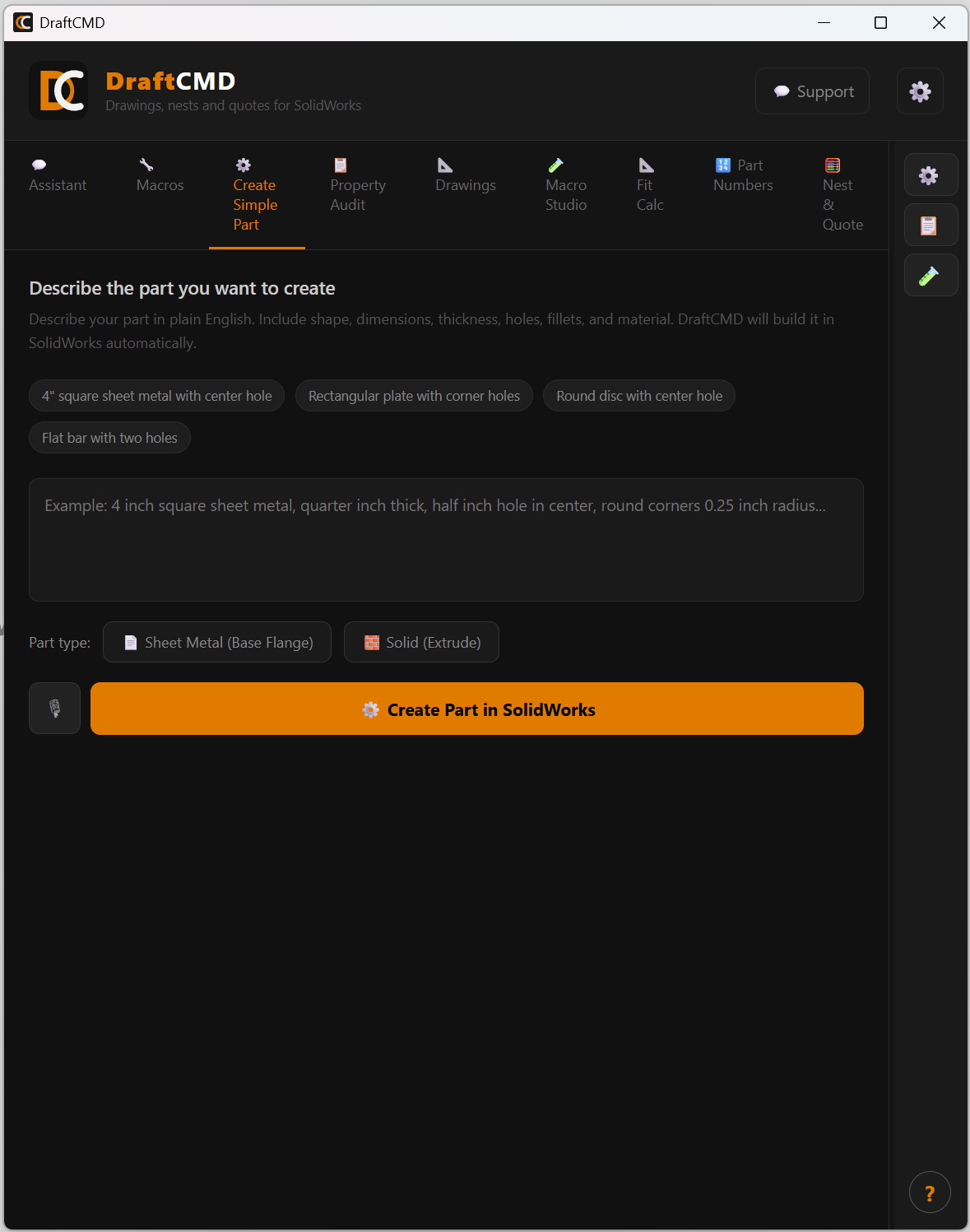
Describe a plate, disc, bar or sheet metal blank with its dimensions, thickness, holes and fillets. Pick sheet metal (base flange) or solid (extrude) and DraftCMD builds it in SolidWorks.
- Starter examples to click: square sheet with centre hole, plate with corner holes, round disc, flat bar
- Dictate instead of typing with the microphone button
Fit Calc
Hole and shaft fits, worked out
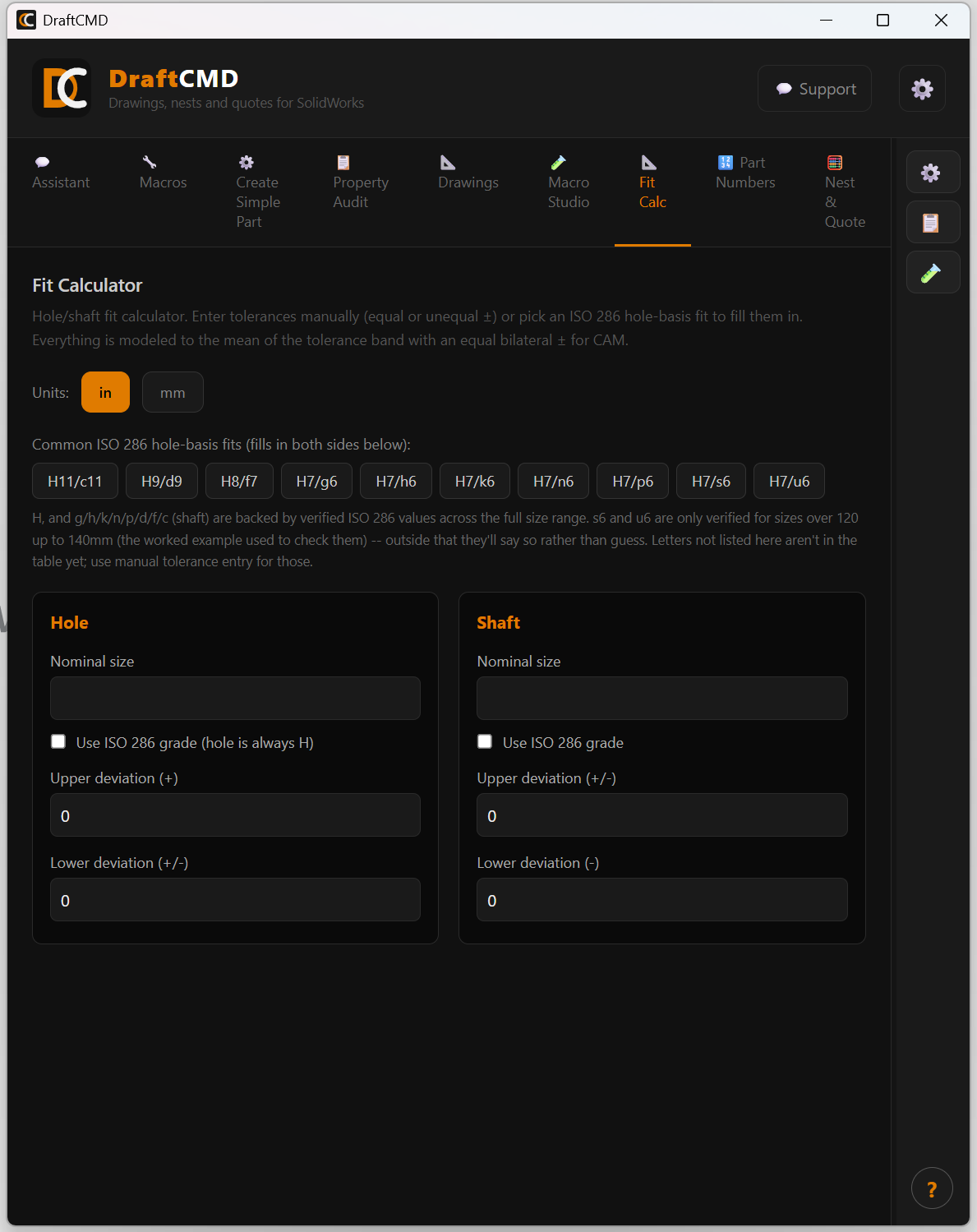
Pick an ISO 286 hole-basis fit, or enter tolerances by hand, and see the result at once. Works in inches or millimetres.
- One-click common fits: H11/c11, H9/d9, H8/f7, H7/g6, H7/h6, H7/k6, H7/n6, H7/p6, H7/s6 and H7/u6
- Tells you whether it is a clearance, transition or interference fit, with the maximum and minimum
- Gives hole and shaft limits, the size to model at the middle of the tolerance, and a ready drawing callout
Some fits are verified only over part of the size range. Outside that range the calculator says so instead of guessing, and you can enter tolerances manually.
Property Audit
Find blank properties before they reach the shop
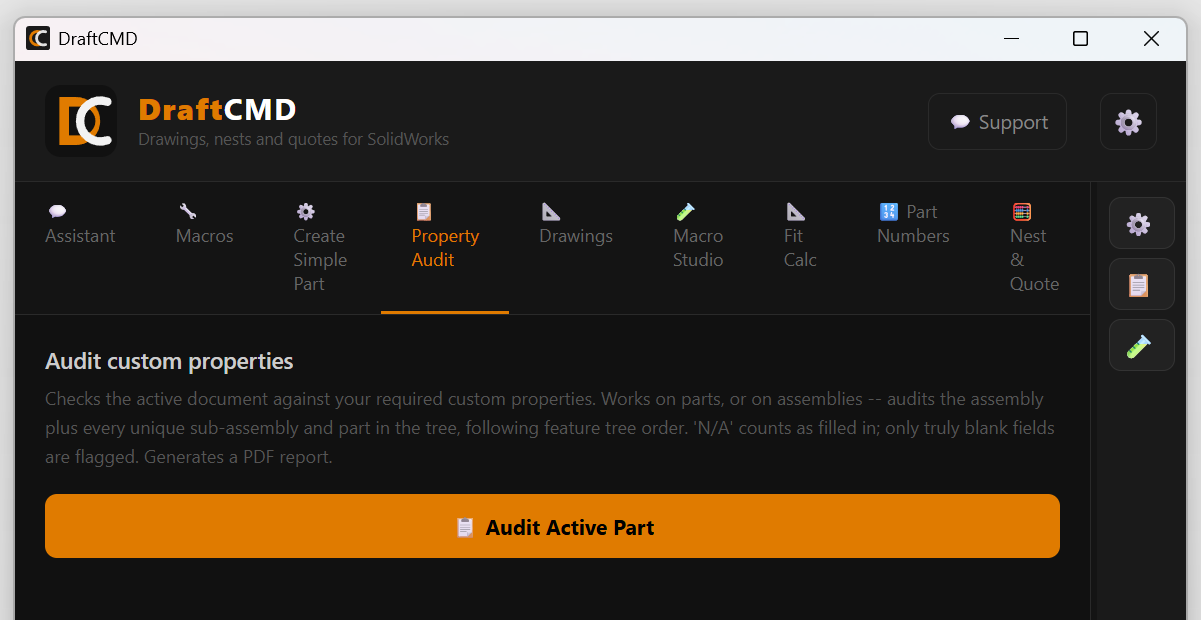
Checks the active document against the custom properties you require. On an assembly it audits the assembly plus every unique sub-assembly and part, in feature tree order.
- "N/A" counts as filled in. Only truly blank fields are flagged
- Produces a PDF report you can send to whoever owns the model
- Choose which properties are required in Settings
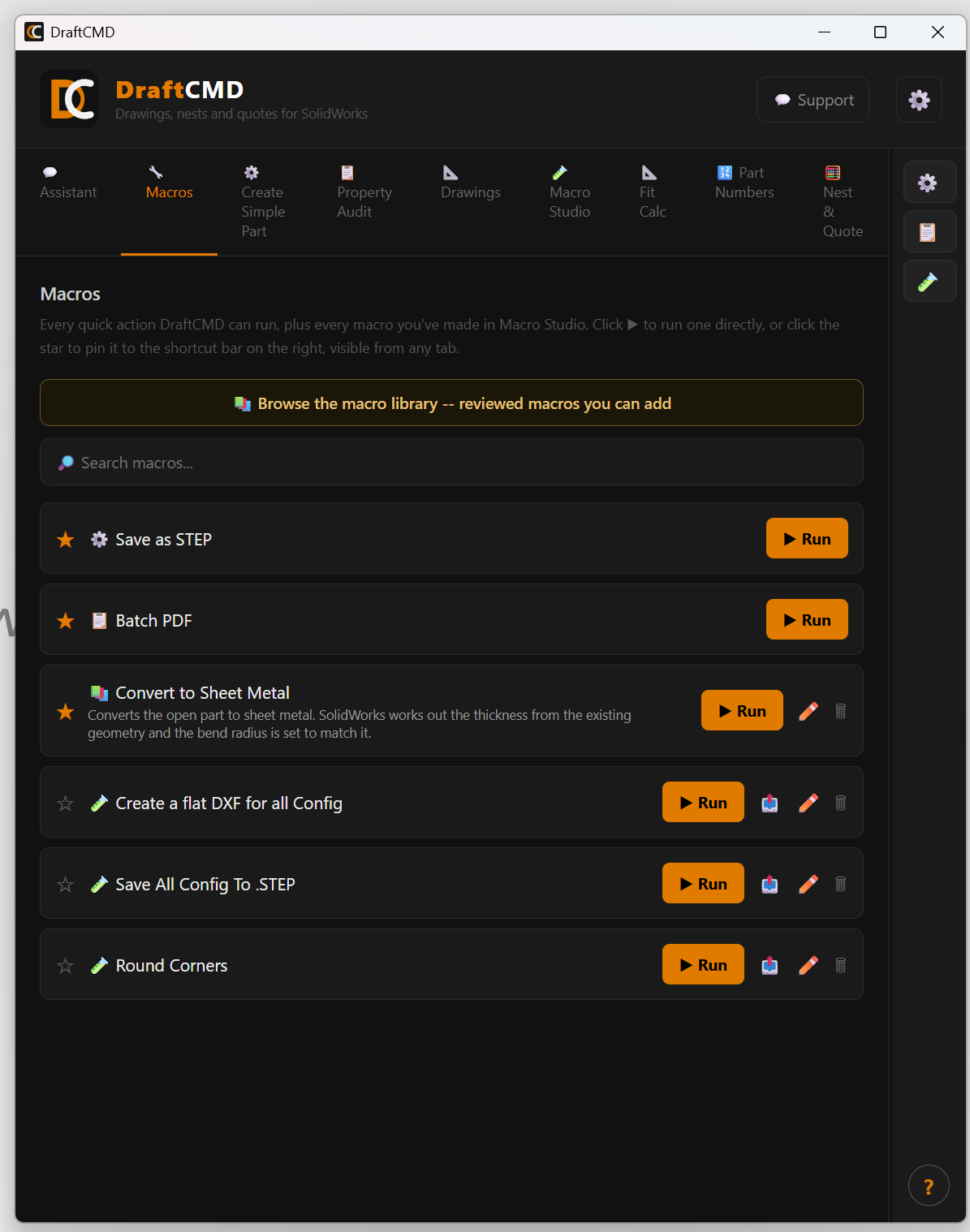
Macros
Your favourite actions, always one click away
Every quick action DraftCMD can run, plus every macro you have made in Macro Studio, in one searchable list.
- Run any item directly with the Run button
- Star an item to pin it to the shortcut bar on the right, visible from any tab
- Edit or delete your own saved scripts
Support and updates
Help without leaving SolidWorks
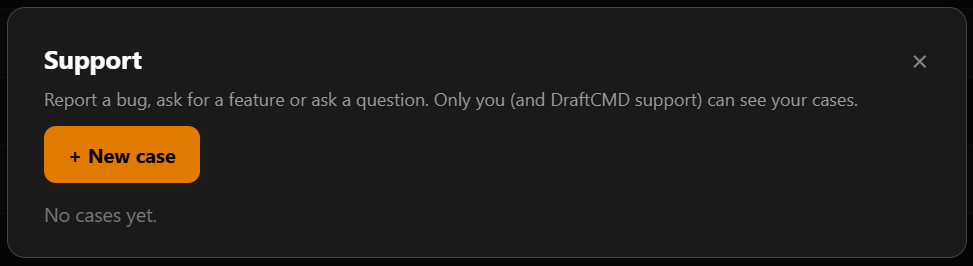
The Support button opens a case form. Report a bug, ask for a feature or ask a question, and follow your cases from the same window.
- Your DraftCMD and SolidWorks version numbers are included automatically. Nothing else is sent.
- Attaching your recent drawing log is optional and off by default, because it can contain part and file names
- DraftCMD checks for updates and shows what changed in each version
Settings
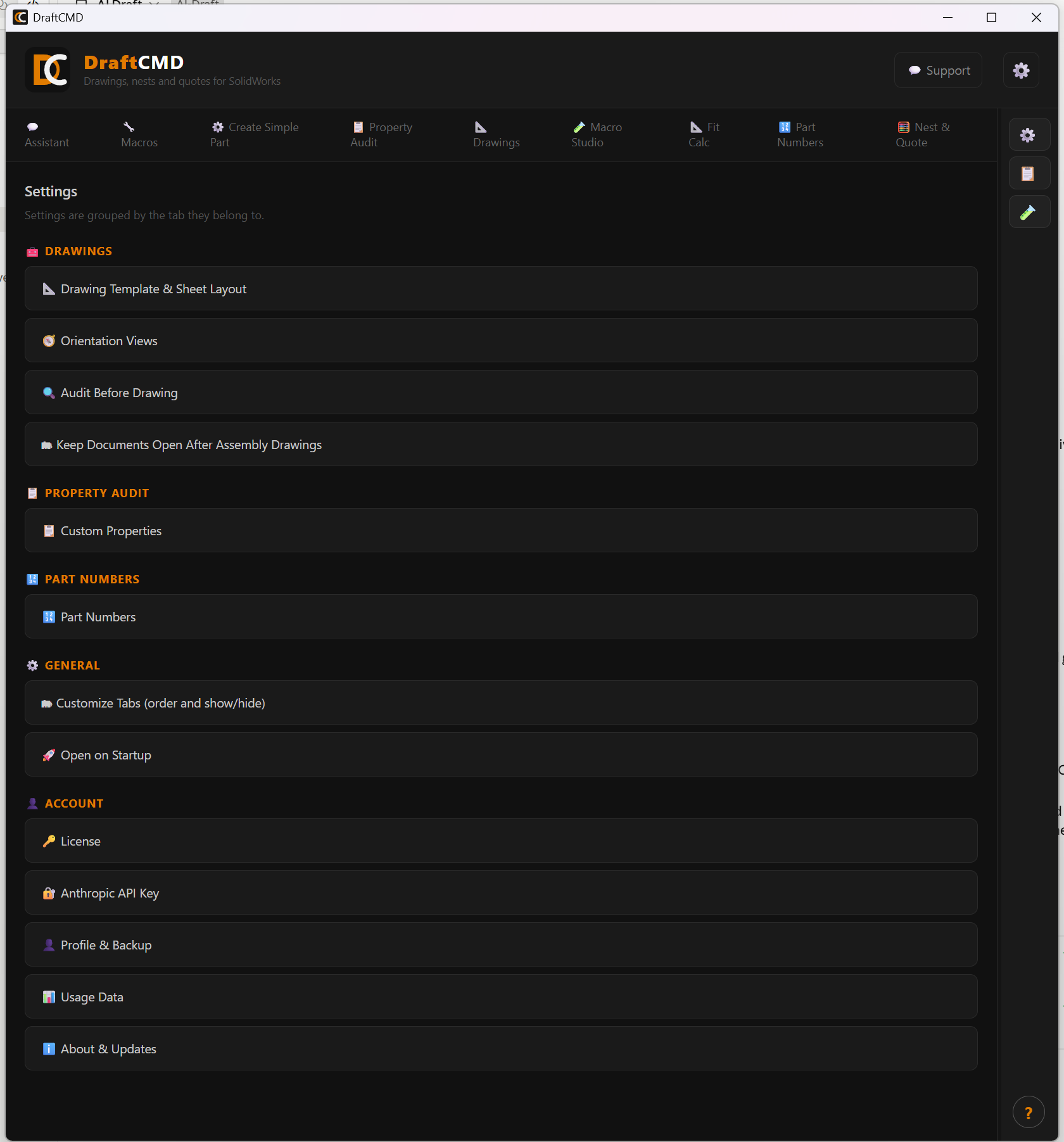
Make it fit how your shop works
- Your own drawing template and sheet layout
- Which custom properties are required, and whether to audit before drawing
- View orientation for flat and bent parts
- Keep documents open after assembly drawings, or close each one as it finishes
- License, your Anthropic API key (stored encrypted on your computer), updates and part number options
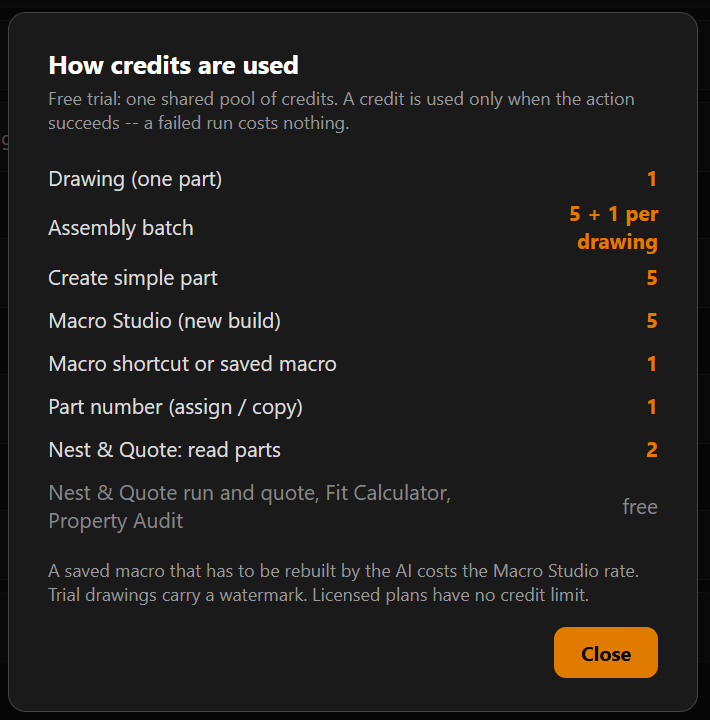
Credits
You only pay for what works
On the free trial a credit is used only when an action succeeds. A failed run costs nothing. Paid plans have no credit limit.