
Features / Guides / Part Numbers
Part Numbers
Project-based numbers that stay unique across weeks of work and across everyone on the team.
Ask three people on a team to number parts for the same project and you will get duplicates. The Part Numbers tab keeps one list per project and hands out the next number on request.
The format
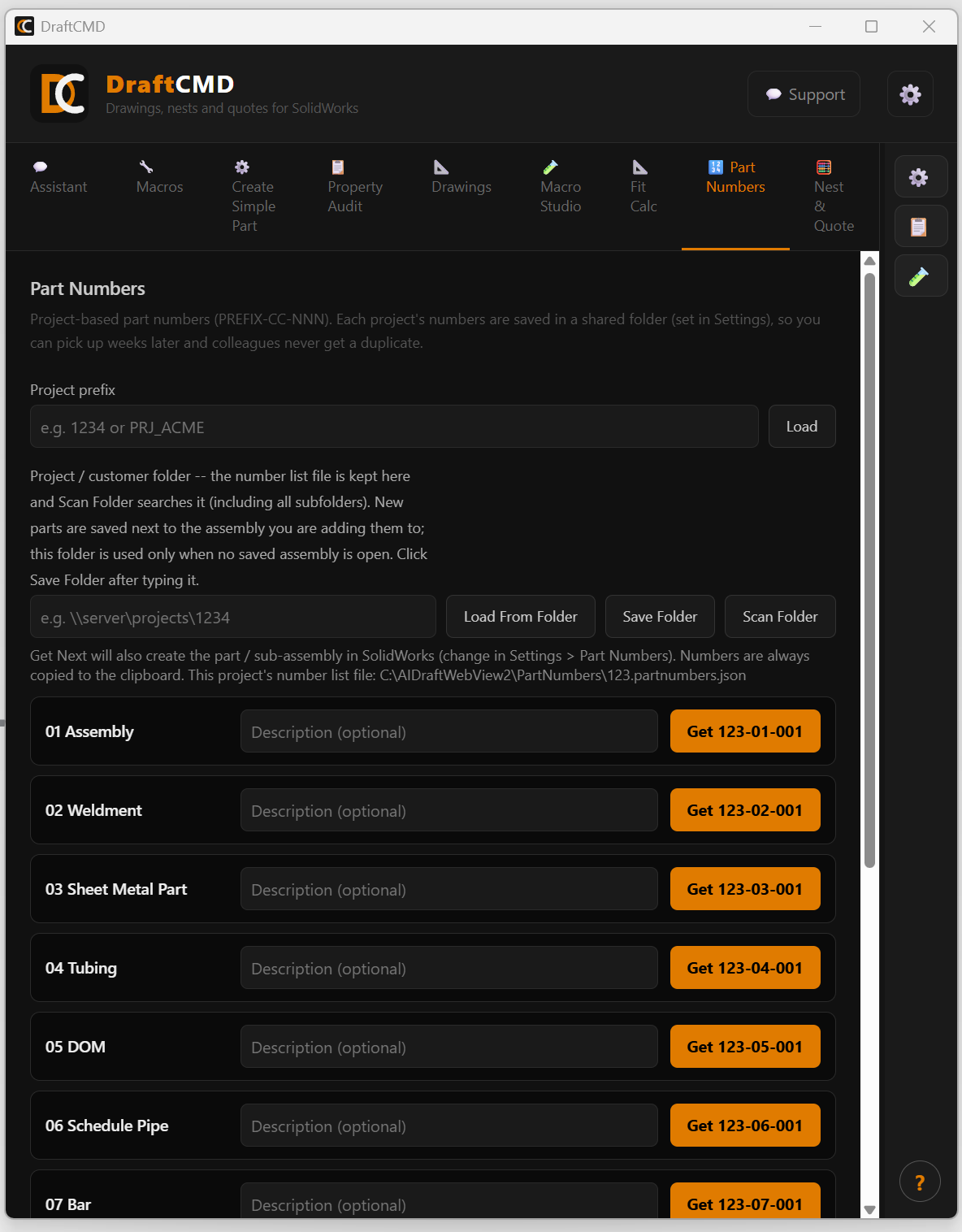
Numbers look like PREFIX-CC-NNN:
- PREFIX is your project or customer, such as
1234orPRJ_ACME. - CC is a two-digit category.
- NNN counts up within the category.
The categories are 01 Assembly, 02 Weldment, 03 Sheet Metal Part, 04 Tubing, 05 DOM, 06 Schedule Pipe, 07 Bar, 08 Round Tubing, 09 Purchased Parts and 10 Other / Misc, with 11 and 12 held in reserve.
Using it
- Type the project prefix and press Load.
- Optionally add a short description next to the category you need.
- Press the Get button. It shows the exact number it will issue.
The number is always copied to the clipboard. Depending on your setting under Settings > Part Numbers, DraftCMD can also create the part or sub-assembly in SolidWorks. New parts are saved next to the assembly you are adding them to. If no saved assembly is open, they go to the project folder.
Shared, and safe to come back to
Each project's list is saved as a file in a shared folder you choose. That is what lets you pick a project up weeks later, and what stops colleagues from getting the same number. The tab shows the path to the list file so you always know where it lives.
- Load From Folder and Save Folder set the project folder.
- Scan Folder searches that folder, including all subfolders, for numbers already in use.
- The Issued numbers list below the categories shows who took each number and when, and lets you void one you no longer need.
What it costs
Assigning or copying a part number uses 1 credit on the free trial. Licensed plans have no credit limit.