
Features / Guides / Macro Studio
Macro Studio
Tell SolidWorks what you want done in plain English. DraftCMD builds the macro and runs it.
Most repetitive SolidWorks jobs are macro jobs, and most people never write macros. Macro Studio is where you describe the job instead. You write what you want, DraftCMD works out a plan, builds the macro and runs it. Loose wording is fine.
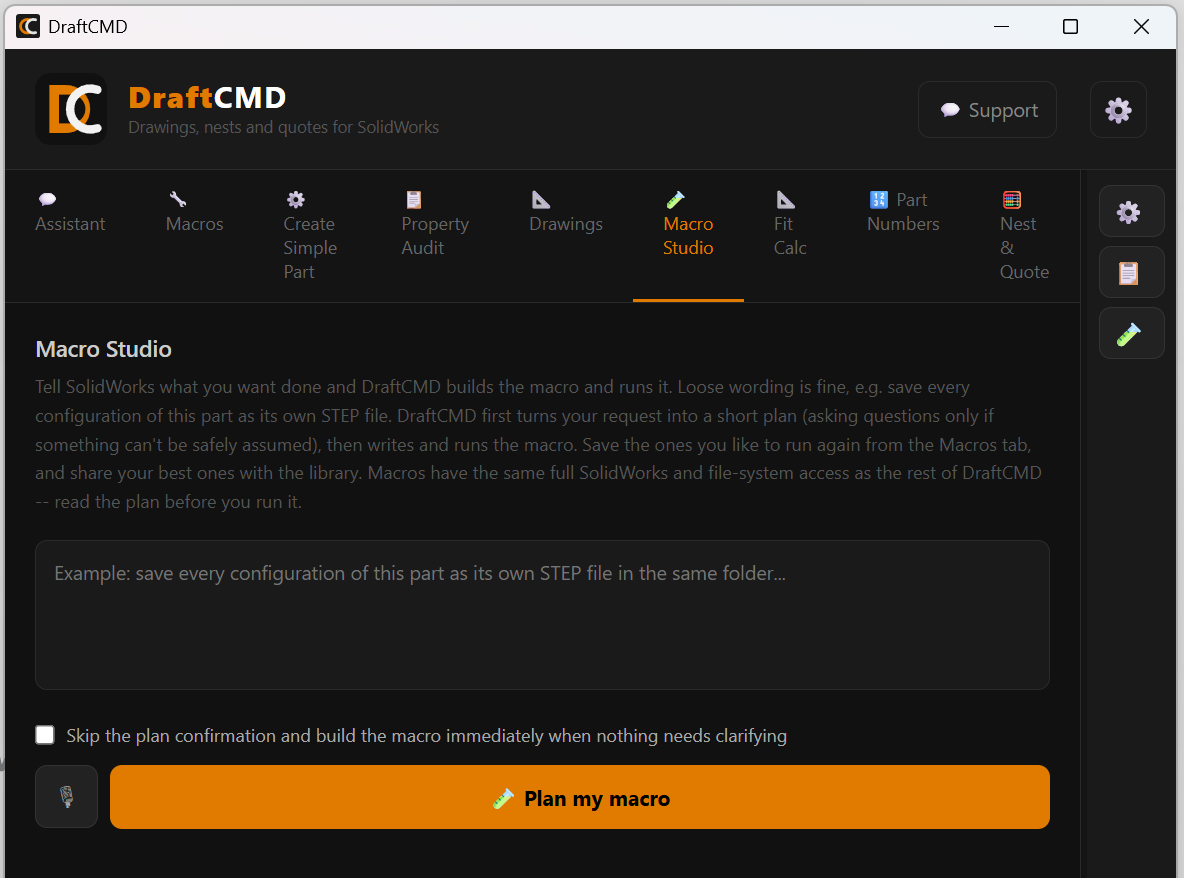
An example
You type: save every configuration of this part as its own STEP file in the same folder
DraftCMD plans: export every configuration of the open part or assembly to a separate STEP file, named after its configuration (ConfigName.STEP) and saved in the same folder as the document.
You read the plan, confirm it, and Macro Studio writes the macro and runs it. The same request works for any number of configurations, on any part, any time you need it.
How it works
- Describe it. Type it, or dictate with the microphone button. You don't need to be exact.
- Check the plan. DraftCMD turns your request into a short plan in plain English. It asks a question only when something can't be safely assumed, such as which folder to save to when you never said. A checkbox lets you skip the confirmation when nothing needs clarifying.
- Run it. DraftCMD writes the macro, shows it to you, and runs it in SolidWorks when you press Run.
Things people build with it
- Save every configuration as its own STEP file
- Export a flat DXF for every configuration of a sheet metal part
- Convert the open part to sheet metal, with the bend radius set to match the thickness
- Round all the corners of a part to a set radius
These are some of the macros in the macro library, where you can also browse ones other people have shared.
Save it, reuse it, share it
A macro you like can be saved. It then appears in the Macros tab, where you can run it again, pin it to the shortcut bar, rename it or delete it. Licensed customers can also share a macro with the library: it is sent to DraftCMD, read and approved, and only then published for other customers to install.
Your own AI key
Macro Studio uses your own Anthropic account. You paste your API key once under Settings > Anthropic API Key. It is stored encrypted on your computer, and your usage and its cost stay with your account.
A macro has the same access to SolidWorks and to your files as the rest of DraftCMD. Read the plan before you run it, and save your work first.
What it costs
On the free trial a new build uses 5 credits, charged only when it succeeds. Running a macro you saved uses 1 credit. Licensed plans have no credit limit. Your Anthropic usage is billed by Anthropic.
To make a basic part from a description, use Create Simple Part.