
Drawings
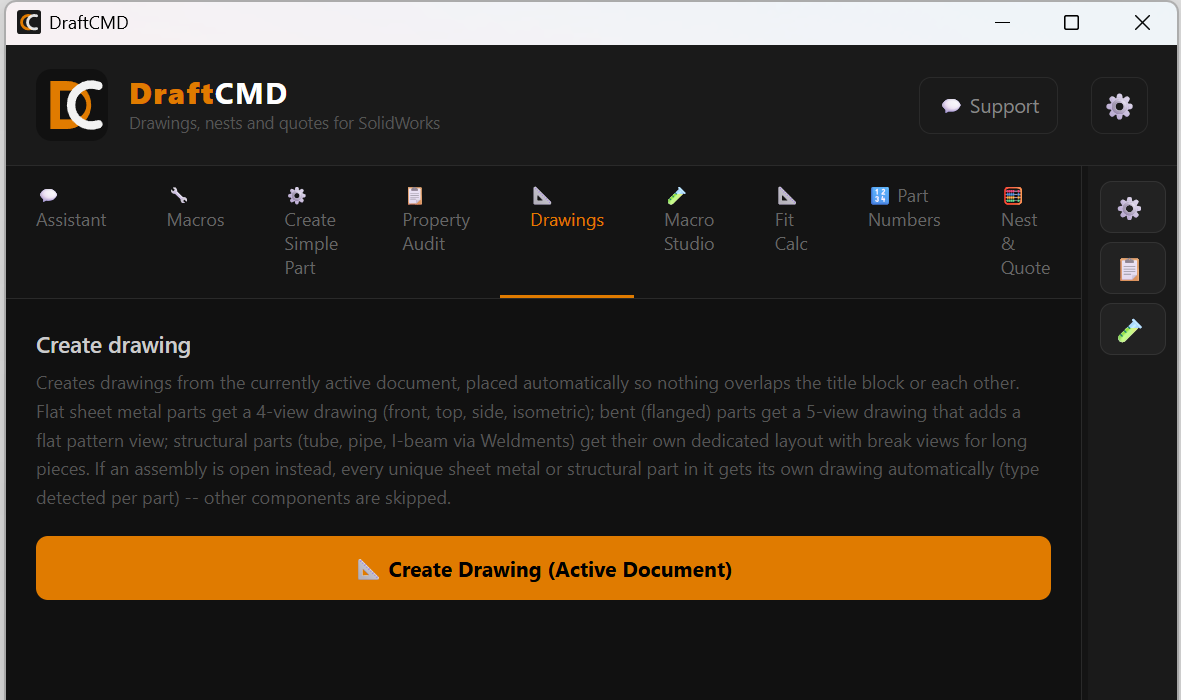
Press one button and DraftCMD lays out the right views for the part in front of you, or for every part in an assembly.
Making drawings for fabricated parts is repetitive. The same views, the same placement, the same checks, over and over. The Drawings tab does that work from whatever document is active in SolidWorks.
It reads the part first
DraftCMD looks at what kind of part you have and chooses a layout to match, instead of dropping the same four views on everything:
- Flat sheet metal gets a 4-view drawing: front, top, side and an isometric view.
- Bent, flanged sheet metal gets a 5-view drawing. The fifth view is the flat pattern.
- Structural parts such as tube, pipe and I-beam made with Weldments get their own dedicated layout, with break views so a long piece still fits the sheet.
Views are placed automatically so nothing overlaps the title block or each other.
Assemblies in one run
With an assembly open instead of a part, DraftCMD goes through it and makes a drawing for every unique sheet metal or structural part. The type is detected per part. Other components, such as purchased hardware, are skipped.
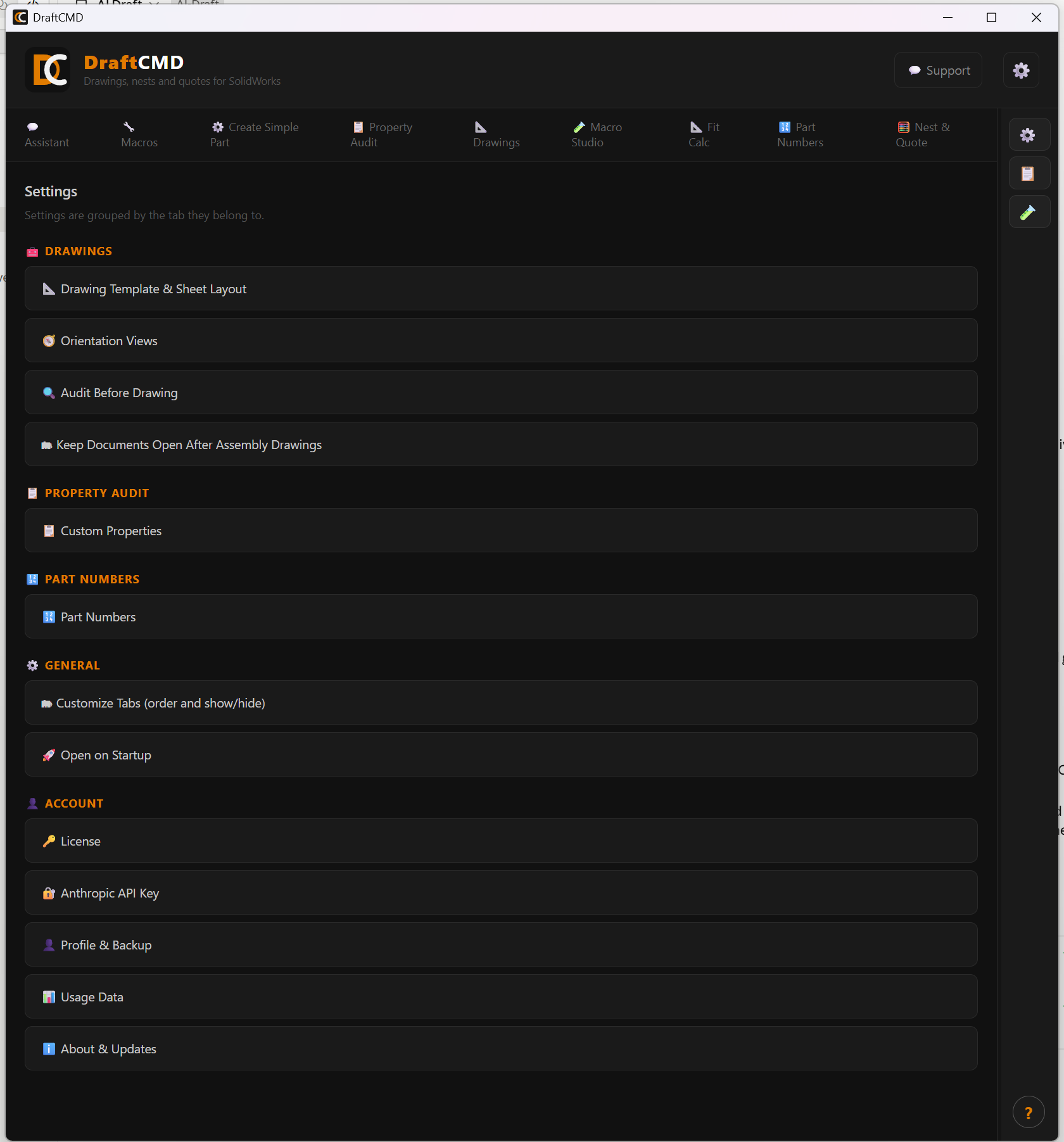
A setting called Keep Documents Open After Assembly Drawings controls what you are left with:
- On: every part and drawing stays open when the run finishes, so you can review, edit and close each one yourself.
- Off: each part is opened, its drawing is created and saved, then the drawing and the part are closed before the next one. You end up with only the assembly open, plus a folder of drawings and saved parts.
Make it match your shop
Under Settings you can point DraftCMD at your own drawing template and adjust the sheet layout: sheet size, margins, title block height and the gap between views. You can also choose the orientation used for the views, and turn on an audit of required custom properties before each drawing is made.
What it costs
On the free trial, one drawing uses 1 credit and an assembly batch uses 5 credits plus 1 per drawing. A credit is used only when the run succeeds, so a failed run costs nothing. Licensed plans have no credit limit. Drawings made during the trial carry a watermark.
Tip: save your assembly before a batch run. DraftCMD opens, creates and saves each part as it goes.