
Features / Guides / Nest & Quote
Nest & Quote
Turn an assembly into nests on your real stock, a cut list for bars and tube, and a priced quote, in one PDF.
Quoting a fabricated job usually means exporting flat patterns, nesting them in some other program, guessing how much of each sheet is waste, and typing the result into a spreadsheet. Nest & Quote does that inside SolidWorks, from the assembly you already have open.
You get a PDF with every nest drawn out with part counts, the cut list for bar and tube, yield, scrap, the offcuts that go back to stock, purchased hardware, and a priced quote. On the free trial, reading the parts uses 2 credits. The nest, the quote and the report are free.
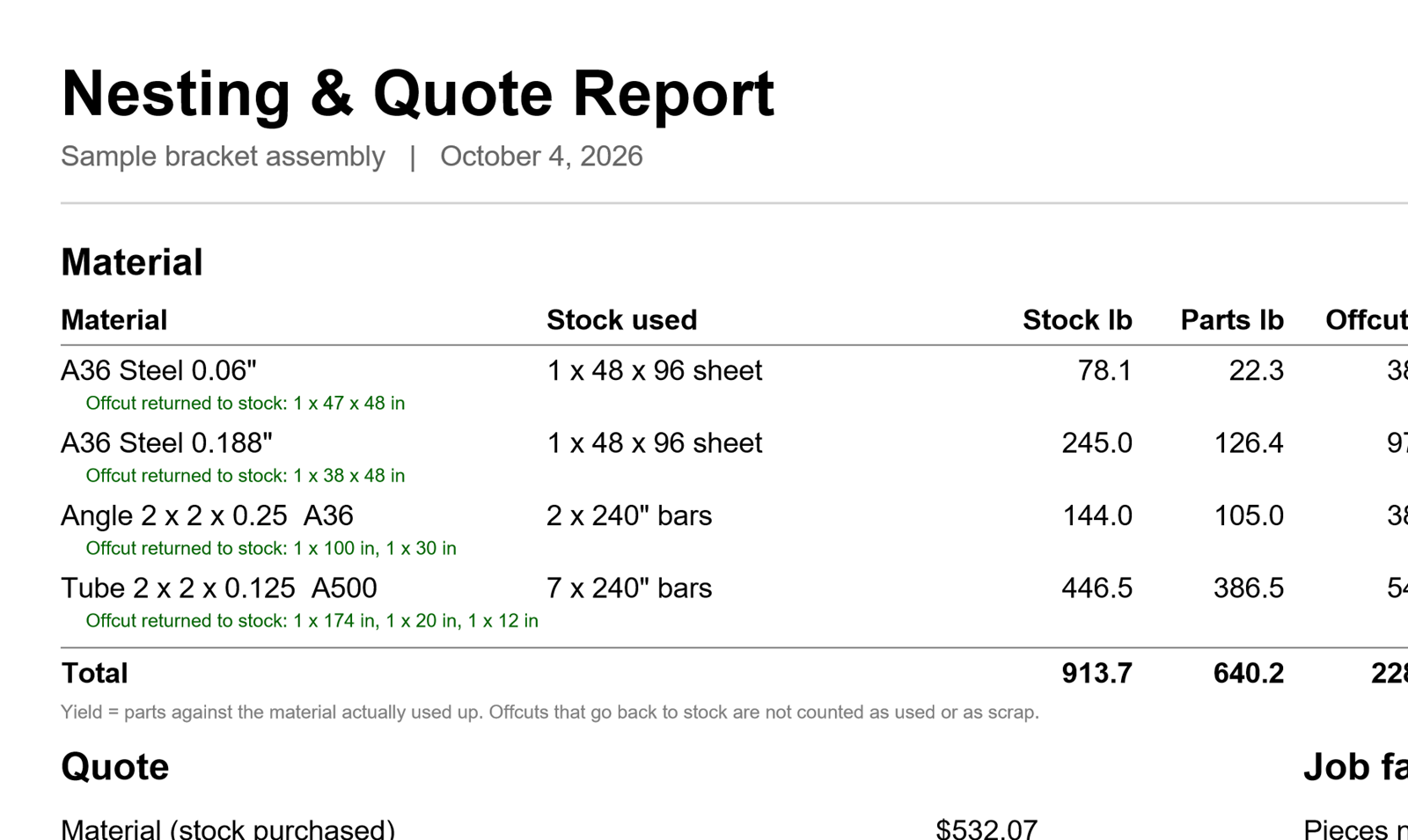
The samples use a made-up shop, "Sample Fabrication Co.", and made-up rates.
Step 1: choose the parts
Pick the open assembly (or a single part), or point at a folder of parts. If you are building more than one of the assembly, enter the number to build and every quantity is multiplied. Press Read parts.
DraftCMD works on a temporary copy of each part, in the configuration the assembly actually uses, so your files are not modified. How a part is read depends on what it is:
- Plates and sheet metal with no bends are read from their large flat face.
- Bent sheet metal is read from its flat pattern.
- Weldment cut-list items such as tube, angle and bar are read as lengths, ready to be packed onto stock bars.
- Bends are counted from the geometry, so the quote can charge for them.
- Purchased hardware is recognised and counted separately (more below).
- STEP files work too, from a folder or from an open STEP assembly. Flat plates, bent parts and straight tube, pipe, angle and bar are recognised from their shape. A bent part is converted to sheet metal on a temporary copy and flattened; your STEP file is never changed.
- Machined parts can be priced as a raw block of stock, its saw cuts, and a machining cost that you type in. Tick Also price machined parts to turn this on.
Anything DraftCMD cannot read is listed as skipped instead of silently dropped. If SolidWorks ever closes unexpectedly while reading a large assembly, DraftCMD remembers which part was being read and avoids it next time, so one problem part does not stop the job.
A part from a STEP file that fits none of these goes on a price-by-hand list with the purchased items, so nothing is dropped from the quote. Type its price once and it is remembered.
You can change Number of assemblies to build after the parts are read, and every quantity follows. Use Save this nest to keep the parts, quantities, prices, stock and costs in a file, and Open a saved nest to come back to it later, change anything, and nest again without reading the assembly.
Save your work first. Reading a big assembly makes SolidWorks do a lot at once.
Step 2: tell it what you buy
Enter your stock in two lists. Prices are per pound.
- Sheet sizes: material, thickness, width and length, for example 0.25″ plain carbon steel, 48 x 96, at your price per pound.
- Bar, tube and structural lengths: profile, material, bar length and price per pound.
A blank material or thickness means "any". The Set up from the parts above button fills in rows from what it just read, so you only have to add prices. With Try every sheet size and keep the cheapest on, DraftCMD nests each material on every size you listed and keeps whichever costs least. If a part has no matching stock row, it borrows a listed size and price and says so in the report notes, rather than leaving the part out.
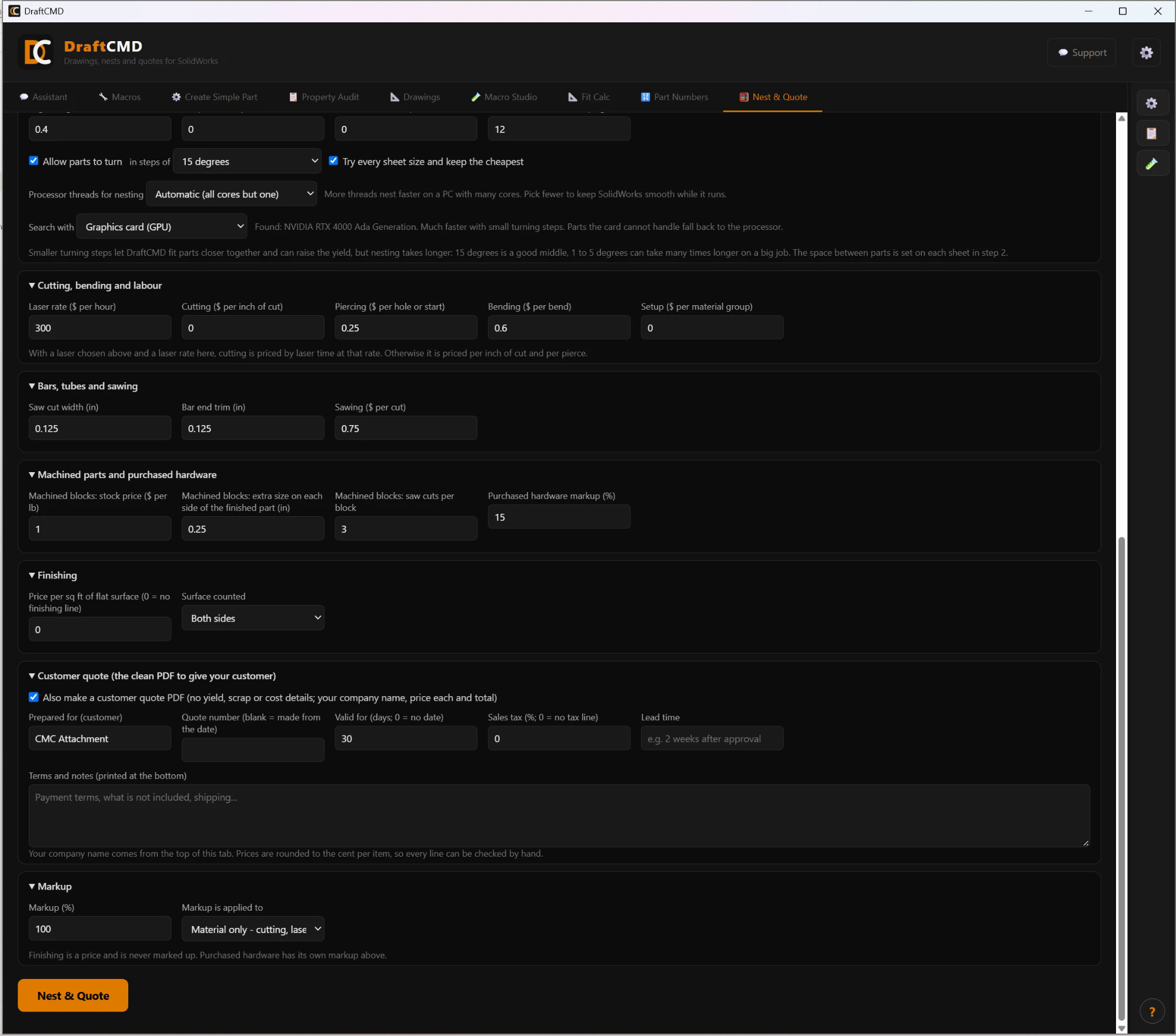
Step 3: nesting rules
- Edge margin and space between parts (inches).
- Saw cut width and bar end trim for bar and tube.
- Allow parts to turn 90 degrees, on or off.
How the nest is made
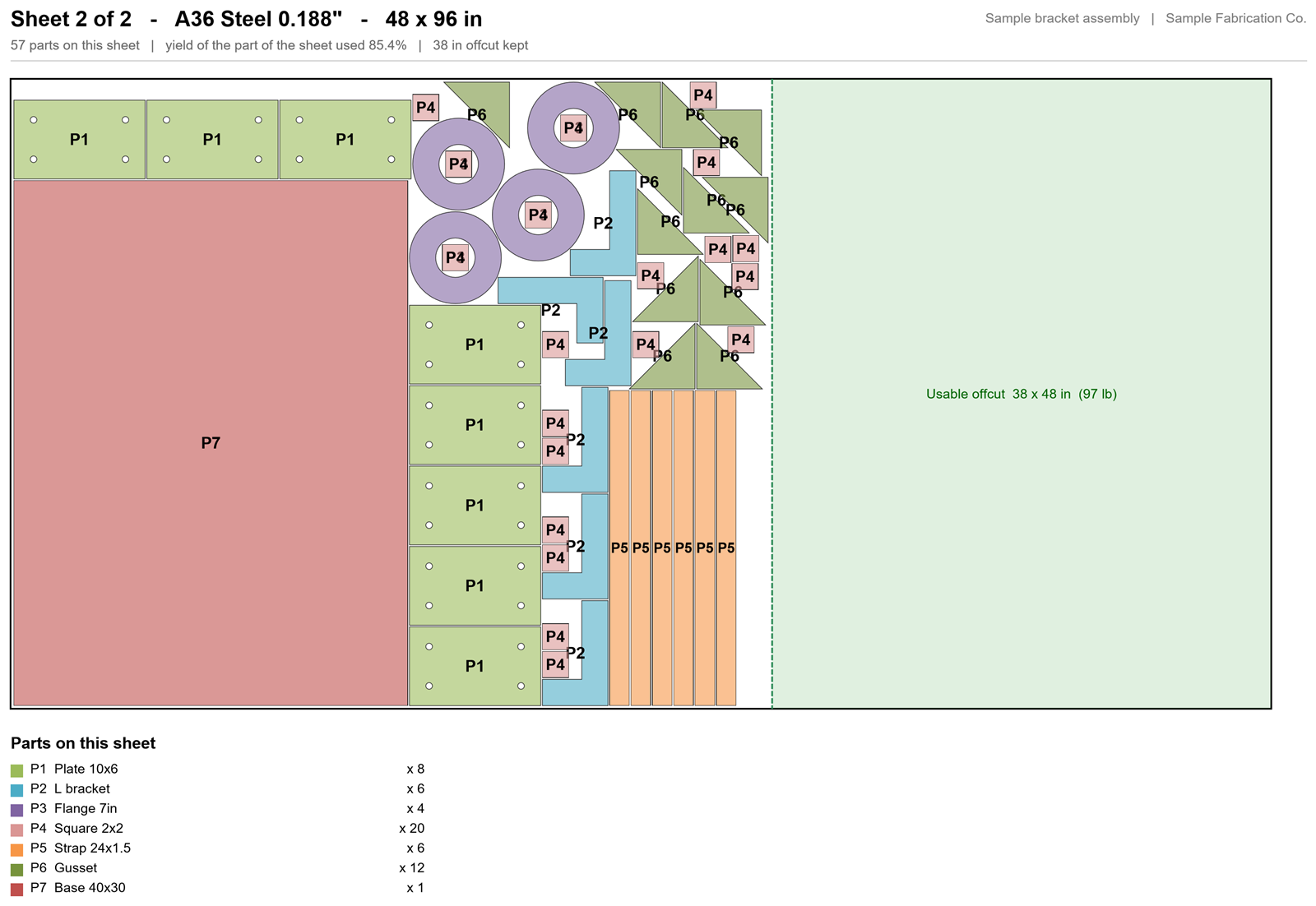
DraftCMD nests the real outline of each part, not a bounding box. Holes and notches are respected, so a small bracket can drop into the hole of a larger plate. Parts are tried in different positions and turned in 90-degree steps, then packed together tightly. A final pass pulls parts toward the sheet corner to open up one larger, usable offcut instead of scattered scraps.
Spacing and margins are applied exactly as you set them, and parts never overlap. A job with several hundred pieces nests in seconds.
Bars, tube and structural shapes
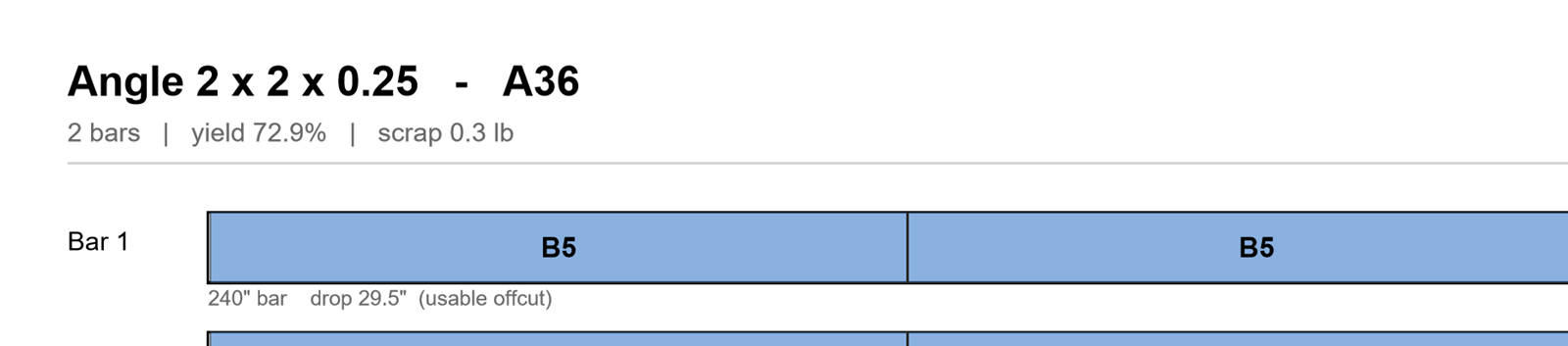
Cut lengths are packed onto your stock bars, longest first, into the bar where they fit best. The saw cut width is taken out between every cut, and the bar end trim is taken from the ends. What remains at the end of each bar is shown as a drop, and flagged as a usable offcut when it is long enough to keep.
Offcuts that go back to stock
A big drop is not scrap. Nest & Quote tracks offcuts that are large enough to reuse, shows them in green on the nest and lists them in the material table, and credits their value back to the job. Two settings control this:
- Offcut credit (% of price): how much of the material price you get back for a usable offcut.
- Smallest offcut worth keeping (in): anything shorter than this counts as scrap.
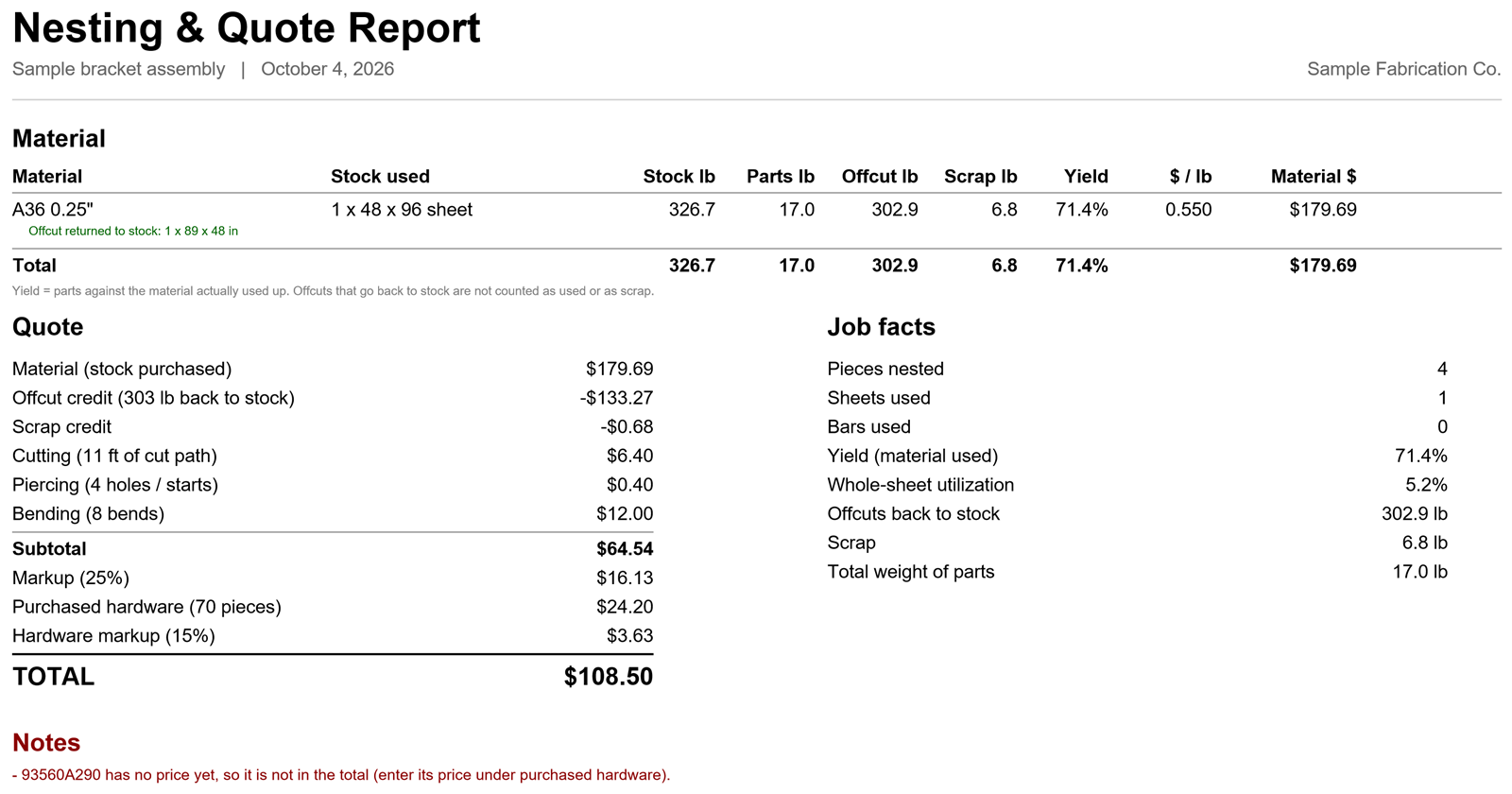
Yield is reported against the material actually used up. Offcuts returned to stock are counted as neither used nor scrapped, which is why a job can show a high yield even when a sheet looks half empty. The report also shows whole-sheet utilization if you want the stricter number.
Step 4: costs and markup
| Setting | What it prices |
|---|---|
| Scrap credit ($ per lb) | What scrap is worth when you sell it |
| Cutting ($ per inch of cut) | The total cut path of every part |
| Piercing ($ per hole or start) | Each hole and each cut start |
| Bending ($ per bend) | Every bend counted on the part |
| Sawing ($ per cut) | Every saw cut on bar, tube and structural |
| Setup ($ per material group) | A fixed charge for each material and thickness |
| Markup (%) | Applied to the subtotal |
| Purchased hardware markup (%) | A separate markup for bought-in parts |
The quote adds material, subtracts the offcut and scrap credits, adds the processes, applies your markup, and then adds purchased hardware with its own markup.
Purchased hardware
Fasteners and other bought-in parts are not nested. DraftCMD recognises McMaster-Carr part numbers in the assembly, adds up how many of each there are, and lists them on a page of their own. A part number such as 93560A290 gets a button that opens its McMaster-Carr page, so you can look up the current price.
McMaster-Carr does not publish a price list, so you enter each price once. DraftCMD remembers it for the next job. If a part has no price yet, it is flagged in the report notes and left out of the total instead of being counted as zero.

Reading the report
- Summary page: material by stock, quote lines, job facts and notes.
- One page per sheet: the nested parts, labelled and counted, with the offcut in green.
- One page per bar group: every cut and every drop.
- Hardware page: part numbers, quantities and prices.
Reports are saved in a Nesting Reports folder beside your job. Reports made during the free trial carry a watermark.
What it is, and what it is not
Nest & Quote is built for quoting. It gives you honest yield, scrap and cost figures from your parts' real outlines. It does not write cutting files or drive a laser, and the footer on every page says so. Use your cutting software for the production nest.
If a part is too big for every stock size you listed, the report tells you and leaves it out of the quote, so you can fix the stock list instead of trusting a wrong total.